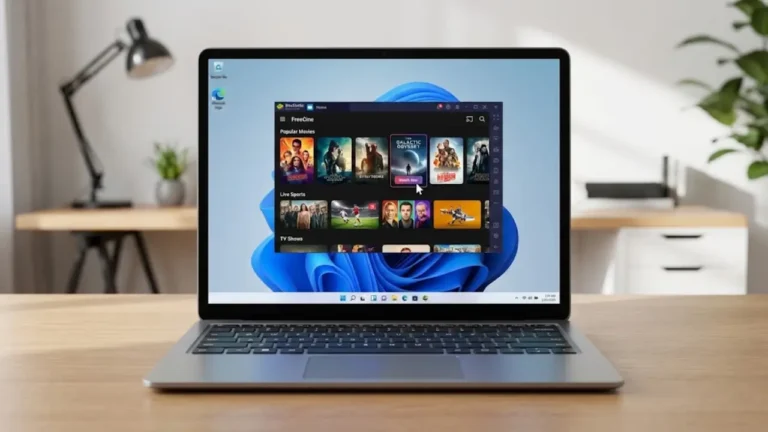
How to Use Gesture Controls in FreeCine APK
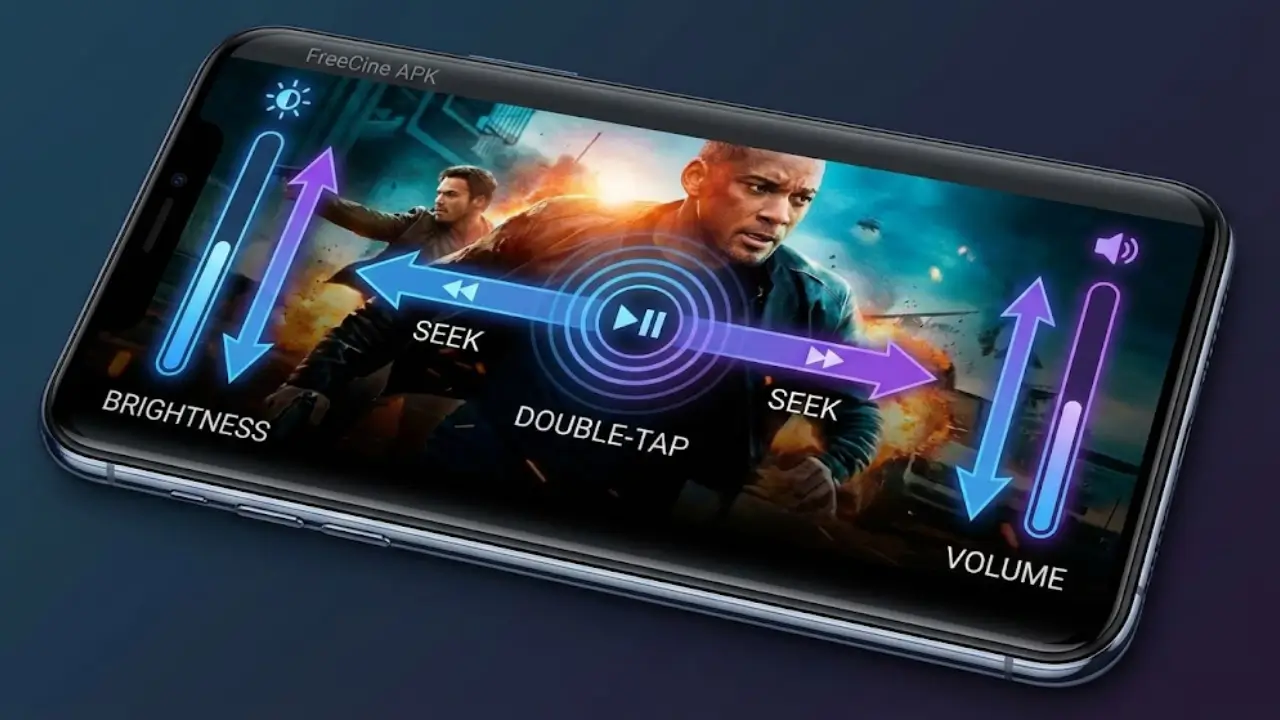
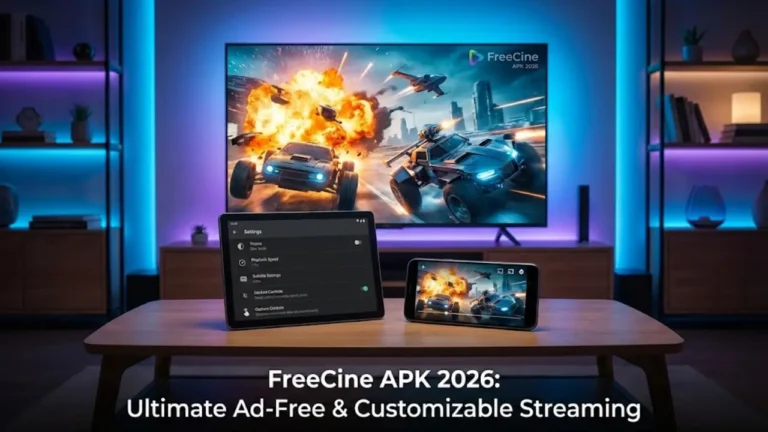
FreeCine APK is one of the most popular media players for Android in 2026. One of its standout features is gesture controls, which make video playback fast, smooth, and convenient. With simple swipes and taps, you can control volume, brightness, playback, and more without searching for buttons on the screen.
In this guide, we’ll show you how to use all the gesture controls in FreeCine APK to enhance your viewing experience.
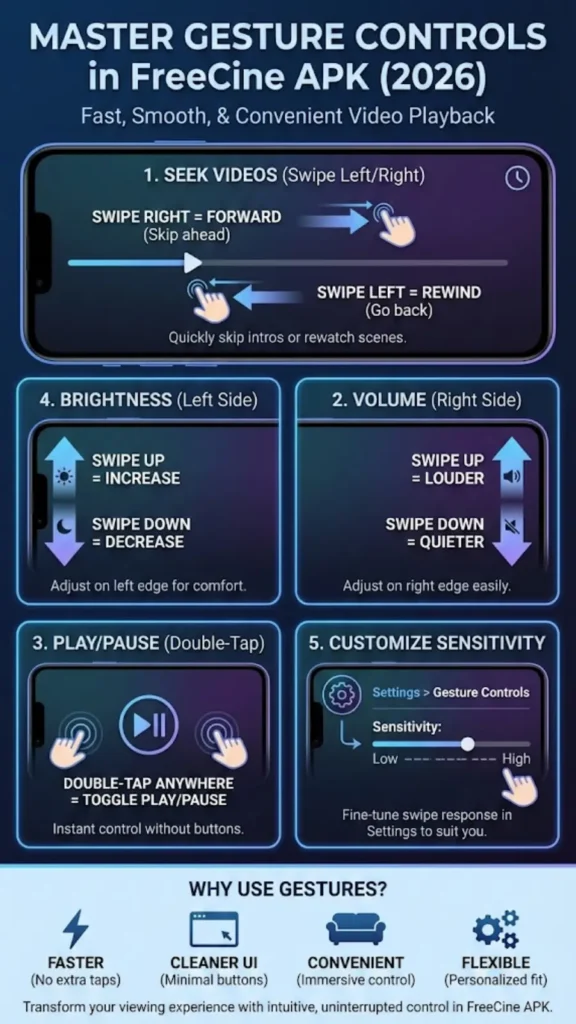
1. Swipe Left or Right to Seek Videos
One of the most useful gestures in FreeCine is the ability to fast-forward or rewind videos with a simple swipe.
How it works:
- Swipe right on the screen to move forward in the video.
- Swipe left to go backward.
This gesture saves time when you want to skip intros, rewatch a scene, or jump to a specific part of your movie or TV show. It’s much faster than using the timeline slider and keeps your viewing experience smooth.
Tip: You can swipe more quickly for larger jumps in longer videos.
2. Swipe Up or Down to Adjust Volume
FreeCine APK makes volume control effortless with vertical swipes on the right side of the screen.
How it works:
- Swipe up on the right edge to increase volume.
- Swipe down on the right edge to lower volume.
This is perfect for watching movies in bed or in public spaces where you need quick volume adjustments without leaving full-screen mode.
Pro Tip: Combine this with headphones for precise audio control without disturbing others.
3. Double-Tap to Play or Pause
Sometimes, all you need is a quick pause or resume. FreeCine APK lets you double-tap anywhere on the screen to play or pause your video instantly.
Benefits:
- No need to search for small on-screen buttons.
- Perfect for stopping playback when interrupted.
- Works on all video formats supported by FreeCine APK.
Extra Tip: Combine this with swipe gestures for an uninterrupted, fluid viewing experience.
4. Swipe Up or Down on the Left Side to Adjust Brightness
Adjusting screen brightness is easy in FreeCine APK. Instead of opening your device settings, you can simply swipe on the left side of the video screen.
How it works:
- Swipe up to increase brightness.
- Swipe down to decrease brightness.
This is especially useful for watching videos at night or in bright sunlight. You can control brightness without leaving the video, making your viewing experience much more comfortable.
Tip: Reduce brightness at night to save battery and protect your eyes.
5. Customize Gesture Sensitivity in Settings
FreeCine APK allows you to adjust gesture sensitivity to suit your preference. Some devices may require a stronger swipe, while others respond to light gestures.
Steps to customize:
- Open FreeCine APK and go to Settings.
- Tap on Gesture Controls.
- Adjust the sensitivity slider for seek, volume, and brightness gestures.
- Test the gestures and tweak until they feel natural.
Customizing gesture sensitivity ensures smoother playback control and a more personalized viewing experience.
Why Gesture Controls Improve Your Viewing Experience
Using gesture controls in FreeCine APK makes your media experience:
- Faster: Skip, pause, or adjust without extra taps.
- Cleaner: Minimal on-screen buttons for an uncluttered interface.
- Convenient: Control volume, brightness, and playback while fully immersed in the video.
- Flexible: Customize gestures to suit your comfort and device.
Gesture controls are one of the key reasons FreeCine APK is loved by casual viewers and binge-watchers alike.
Conclusion
FreeCine APK’s gesture controls provide a simple, intuitive way to interact with your videos. From swiping to seek, adjusting volume and brightness, double-tapping to pause, to customizing gesture sensitivity, these features make video playback faster and more enjoyable.
Mastering gesture controls will transform your streaming experience, allowing you to focus on what matters most—enjoying your favorite movies, shows, and live content without interruptions.